Data Organization Skills
Those who have the ability to arrange and organize Data files neatly and methodically often achieve greater results than others. Quite simply, when everything is structured and kept in order, you don't burn precious energy and time hunting down what you need, allowing you to focus deeply on what truly matters.
It is safe to say that one of the single habits that accelerates our career success is organizing and structuring our work-related files. As our work landscape advances, the volume of data generated for each project keeps expanding. If we don't know how to organize and arrange files sensibly, finding the right document at the critical moment becomes a major headache.

In this post, I will share the exact way I organize my daily Data.
1. Group all project files into dedicated folders
I have seen countless people carelessly scatter files across any accessible corner of their computer. Whenever they create (or download) a new file, they habitually dump it in the quickest place they can find—especially the Desktop or Downloads folder.
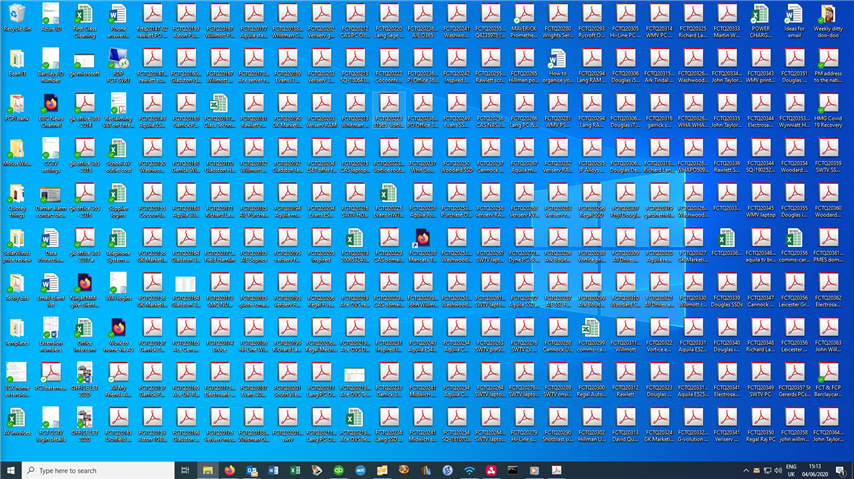
Many people leave their entire Desktop completely covered in icons
Sure, this shortcut might help them quickly spot what they need early on when there are only a few files. However, as projects expand and more files accumulate, they end up wasting enormous amounts of time searching for the file they need.
Therefore, to avoid wasting time later digging through endless documents, all files belonging to a single project go into their own folder, named following this convention:
📂 YYYY-MM-project-name
Where:
-
YYYY : Project start year
-
MM : Project start month
-
project-name : Name of the project
For example:
- 2024-10-deploy-abc-system
- partner-contract.docx
- system-architecture.docx
- user-guide.docx
If data is organized this way, you immediately know where to look for the "ABC system user guide" , right?
2. Manage files within project folders
Once related data files are consolidated into one folder, I structure the contents further according to the nature of the project.
a. Create a project overview note (Summary File)
To avoid wasting time when reviewing a project later—especially long after it has wrapped up and details have faded from memory—I always create an overview note (Summary File) inside each project folder. This records essentials such as what the project is, how long it runs, what tasks it involves, etc.
My Summary File has 3 key characteristics:
Contains the most fundamental and high-level project information
Can be a plain text file, Word document, Excel spreadsheet, or whatever format you prefer
Is continually updated throughout the project lifecycle
For example:
- 2024-10-deploy-abc-system
- partner-contract.docx
- system-architecture.docx
- user-guide.docx
- ...
- read-me.md
b. Create subfolders to organize data by project traits
A single project contains a wide variety of files. To streamline search and workflow, I group these files into subfolders tailored to how the project unfolds.
Typically, I split project data in one of two ways:
-
By task stream / deliverable
- 2024-10-deploy-abc-system
- partner-contract-signing
- system-deployment
- handover-and-operations
- read-me.md
-
By timeline / month
- 2024-10-deploy-abc-system
- 2024-10
- 2024-11
- 2024-12
- read-me.md
c. Name files following a standard convention
Naturally, each person and profession has their own file-naming style that fits how they work. Nevertheless, I believe that across every industry, adopting a systematic naming convention makes retrieving files much easier when needed.
Personally, I name my data files adopting the Semantic Versioning principles from software engineering, as follows:
📄 YYYY-MM-DD-author-filename_vMajor.Minor.Patch
Where:
-
YYYY: Year the file was first created
-
MM: Month the file was first created
-
DD: Day the file was first created
-
author: Primary author
-
filename: File name
-
Major: Major version (overhauls of major sections/content)
-
Minor: Minor version (small feature or content updates)
-
Patch: Patch version (typos or minor quick fixes)
For example, instead of naming a file like
📄 partner-contract.docx
, I name it as follows:
-
Original file: 📄 2024-10-08-kimpa-partner-contract_v1.0.0.docx
-
Minor typo fix: 📄 2024-10-08-kimpa-partner-contract_v1.0.1.docx
-
Small update: 📄 2024-10-08-kimpa-partner-contract_v1.1.0.docx
-
Major overhaul: 📄 2024-10-08-kimpa-partner-contract_v2.0.0.docx
However, when full semantic versioning isn't necessary, I also use this simplified shorthand convention:
📄 YYYY-MM-DD-author-filename-version
For example:
-
Original file: 📄 2024-10-08-kimpa-partner-contract-v0.docx
-
First revision: 📄 2024-10-08-kimpa-partner-contract-v1.docx
-
Second revision: 📄 2024-10-08-kimpa-partner-contract-v2.docx
Naming files and folders like this keeps context crystal clear while making version management effortless.
3. Separate completed and active projects into two main folders
For ongoing work (active projects), I place them in a folder that is quick to access (usually Documents). For finished work (completed projects), I store them in a dedicated archive folder (Archive).
- Documents
- active-project-1
- active-project-2
- Archive
- completed-project-1
- completed-project-2
Thus, whenever a project finishes, I simply move its folder from Documents to Archive to mark it as complete (preventing clutter among ongoing projects in Documents). Later on, if I need to look up details about a past project, I can easily find it inside the Archive folder.
Additionally, for those who juggle projects across multiple clients or companies like me, create subfolders for each company. For instance, if I work with Capybara and Hamster, I create Capybara and Hamster subfolders under both Documents and Archive to organize current and concluded projects separately.
- Documents
- Capybara
- active-project-1
- active-project-2
- Hamster
- active-project-1
- active-project-2
- Archive
- Capybara
- completed-project-1
- completed-project-2
- Hamster
- completed-project-1
- completed-project-2
Bottom lines
After restructuring my personal Data, my computer is no longer littered with files strewn all over the place. Instead, everything is organized neatly like this ( click on the icons below to explore details ):
- Document
- company-1
- YYYY-MM-active-project-A
- Sub-folder-1
- YYYY-MM-DD-author-file-1-version.format
- YYYY-MM-DD-author-file-2-version.format
- ...
- Sub-folder-2
- YYYY-MM-DD-author-file-1-version.format
- YYYY-MM-DD-author-file-2-version.format
- ...
- ...
- read-me.md
- YYYY-MM-active-project-B
- Sub-folder-1
- YYYY-MM-DD-author-file-1-version.format
- YYYY-MM-DD-author-file-2-version.format
- ...
- Sub-folder-2
- YYYY-MM-DD-author-file-1-version.format
- YYYY-MM-DD-author-file-2-version.format
- ...
- ...
- read-me.md
- company-2
- YYYY-MM-active-project-A
- Sub-folder-1
- YYYY-MM-DD-author-file-1-version.format
- YYYY-MM-DD-author-file-2-version.format
- ...
- Sub-folder-2
- YYYY-MM-DD-author-file-1-version.format
- YYYY-MM-DD-author-file-2-version.format
- ...
- ...
- read-me.md
- YYYY-MM-active-project-B
- Sub-folder-1
- YYYY-MM-DD-author-file-1-version.format
- YYYY-MM-DD-author-file-2-version.format
- ...
- Sub-folder-2
- YYYY-MM-DD-author-file-1-version.format
- YYYY-MM-DD-author-file-2-version.format
- ...
- ...
- read-me.md
- Archive
- company-1
- YYYY-MM-completed-project-A
- Sub-folder-1
- YYYY-MM-DD-author-file-1-version.format
- YYYY-MM-DD-author-file-2-version.format
- ...
- Sub-folder-2
- YYYY-MM-DD-author-file-1-version.format
- YYYY-MM-DD-author-file-2-version.format
- ...
- ...
- read-me.md
- YYYY-MM-completed-project-B
- Sub-folder-1
- YYYY-MM-DD-author-file-1-version.format
- YYYY-MM-DD-author-file-2-version.format
- ...
- Sub-folder-2
- YYYY-MM-DD-author-file-1-version.format
- YYYY-MM-DD-author-file-2-version.format
- ...
- ...
- read-me.md
- company-2
- YYYY-MM-completed-project-A
- Sub-folder-1
- YYYY-MM-DD-author-file-1-version.format
- YYYY-MM-DD-author-file-2-version.format
- ...
- Sub-folder-2
- YYYY-MM-DD-author-file-1-version.format
- YYYY-MM-DD-author-file-2-version.format
- ...
- ...
- read-me.md
- YYYY-MM-completed-project-B
- Sub-folder-1
- YYYY-MM-DD-author-file-1-version.format
- YYYY-MM-DD-author-file-2-version.format
- ...
- Sub-folder-2
- YYYY-MM-DD-author-file-1-version.format
- YYYY-MM-DD-author-file-2-version.format
- ...
- ...
- read-me.md
That is the entire system I use on a daily basis to organize my Data.
I believe everyone should design an organization system that suits them best. In the short term, structuring your files requires deliberate effort, but in the long run, it saves you huge amounts of time—especially when handling multiple projects simultaneously.

"Tidy files, tidy mind!"
Thank you for reading my article!
Kim,